

How to find duplicate embroidery designs and keep one copy
Duplicate designs pile up from bundles, re-downloads and old USB sticks. Learn what really counts as a duplicate, how to check by hand, and how to clear copies without losing anything.
By CraftKeep Team · · 5 min read
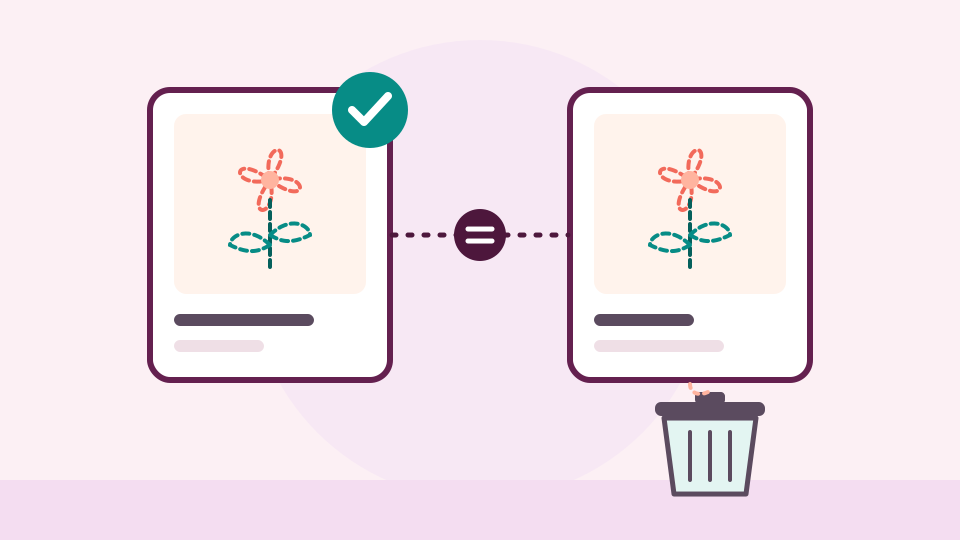
To find duplicate embroidery designs, look for files whose contents are exactly the same, not just files that share a name. Gather your designs in one place, compare likely copies by size and picture, or use a tool that checks the contents for you. Then keep one copy on purpose and move the rest somewhere you can undo.
Duplicates sneak in quietly. A design comes in a sale bundle and again in the set you bought on its own. You download a purchase twice because you couldn't find the first one. A file travels to a USB stick and back. A few years on, the same rose might sit in four folders, and you can't tell which one is "the real one." This guide shows how to find them and clean up embroidery design folders without losing anything you need.
What counts as a duplicate embroidery file?
Before you delete anything, be clear about what a duplicate is. There are three cases that look alike but aren't:
- The same file twice. Two files with exactly the same contents, byte for byte. These are true duplicates, even if one is called
Rose.pesand the otherrose_final.pes. - Two files with the same name.
Rose.pesfrom one designer andRose.pesfrom another are usually two different roses. Same name, different designs. - One design in several formats.
Rose.pes,Rose.dstandRose.jefare the same design for different machines. They aren't duplicates. Designers include every format so the set works on any machine.
Only the first case is safe to clear without thinking. The third is a different job: removing formats your machine can't read. The last section covers it.
Why duplicates are worth finding
A few copies do no harm. Hundreds of them make a collection harder to use:
- Searches show the same design several times, so real results get buried.
- You lose track of which copy has your notes or the right instructions beside it.
- Copies take up space on every drive and stick you keep.
- Backups take longer, because there is more to copy.
How to find duplicate embroidery files by hand
On an ordinary computer, you can catch many copies with patience:
- Put everything in one place. Copy all your design folders onto one drive first. Duplicates hide best when they're spread out.
- Sort by size. Open a folder in list view and sort by size. Two stitch files with exactly the same size are worth a closer look.
- Compare pictures. Open both in a viewer, such as the free embroidery file preview, and check that the stitch count and size match too.
- Check the set. Before you delete a copy, make sure the instructions and color chart for that design are still in the folder you keep.
- Move, don't delete. Put the copy in a "to delete" folder for a month. If nothing is missing, empty it.
This works for a few hundred designs. It gets slow in the thousands, because you can only compare what you think to check, and matching sizes don't prove two files are the same.
What an embroidery design duplicate finder should do
A good embroidery design duplicate finder takes the guessing out. Look for one that:
- Compares contents, not names. Two files are the same only if every byte matches. Matching names prove nothing.
- Shows where each copy lives. You need to see which designer and set each copy belongs to before you choose.
- Shows pictures. Seeing the stitches confirms you're looking at what you think you are.
- Lets you undo. Nothing should vanish for good in one click.
General duplicate finders for computers can compare contents, but they show file names and folders, not stitched designs.
Find duplicates with CraftKeep

CraftKeep has a Duplicate files page that does the comparing for you. It lists every file that appears in more than one project, grouped so you can compare the copies. It treats two files as duplicates only when their contents are exactly the same. The names don't matter, and a PES and a DST of the same design aren't listed.
To use it:
- Choose Your account, the round button at the top right, then Your account in its menu.
- On the Tidy up card, choose Duplicate files.
- Each group shows every copy with its picture and the project it lives in, with a link to open that project. The biggest files come first.
- Under the copy you want to keep, choose Keep this one. The other copies go to Trash, and the message has an Undo button.
- If you want every copy to stay where it is, choose Keep all. The group leaves the list.
When nothing is left, the page says "No duplicate files. Every file is in one project only."
You can also spot copies one design at a time. Open a design's preview, and Also in: lists each other project that holds the very same file.
A few things to know. Only copies in different projects are listed, and copies already in Trash aren't included. Duplicate checks run inside your own library only, and never compare your files with anyone else's. Everything moved goes to Trash first, where you can bring it back; see Using the Trash. The full details are in Tidying up duplicates and formats.
Clean up embroidery design folders: formats you don't use
Once true duplicates are gone, the next big source of clutter is formats. If you stitch on one machine, the DST, JEF and EXP copies in every set may be of no use to you.
In CraftKeep, add your machine on Your machines first. Then choose Remove formats on the Tidy up card. CraftKeep lists the embroidery formats in your library with how many files each has, and marks the ones your machine reads Keep. You tick the formats to remove and review what will move. Designs that exist only in a format you chose are listed separately and left where they are, unless you tick Also move these. To confirm, you type I UNDERSTAND, and the files go to Trash.
Before you remove a format, think about whether you might change machines or share designs with a friend who stitches on a different brand.
A simple routine to stay tidy
- Check for duplicates after any big import.
- Look again once a month, or after a sale where you bought bundles.
- Keep one copy in the set where it belongs, with its instructions.
- Empty Trash only once you're sure nothing is missing.
Next steps
If you haven't brought your collection together yet, start with the best way to store thousands of embroidery designs. Read how to organize embroidery files for a system that keeps new copies out. See the embroidery file organizer, or compare plans on the pricing page.
Try it with your own files
Make a free CraftKeep library and see your machine embroidery files as pictures you can search.
No credit card needed