

A beginner's guide to 3D printing files
A model file describes a shape, your slicer turns it into G-code for your printer, and the model is the file worth keeping. Here is what each file type does.
By CraftKeep Team · · 5 min read
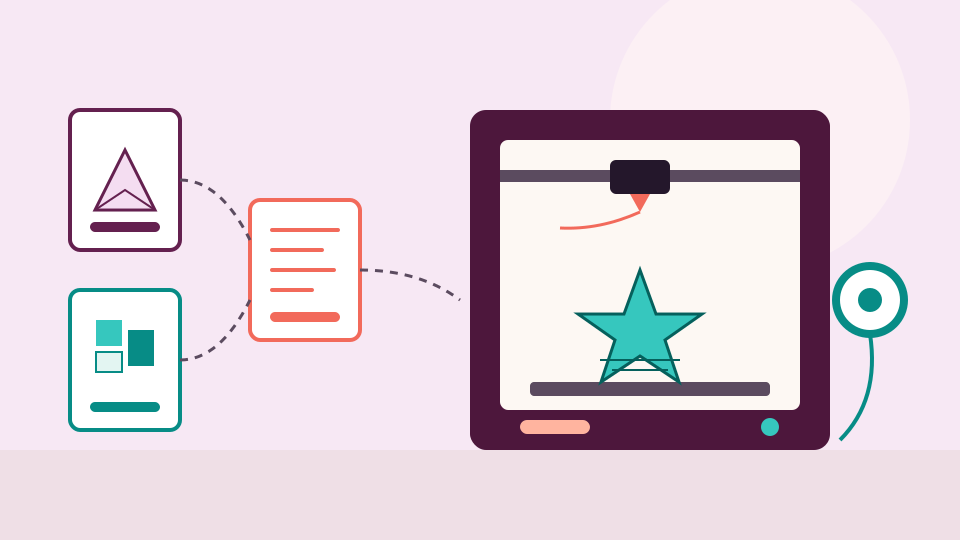
This beginner's guide to 3D printing files starts with one idea: a model file, such as an STL or 3MF, describes a shape. A program called a slicer turns that shape into G-code, the step-by-step instructions your printer follows. Keep the model files, since they work with any printer. G-code only suits the printer and settings it was made for.
New printer owners often find a download holds five files with three different endings, and no clue which one to open. Once you know what each file is for, it all makes sense.
From a model to a print, in three steps
Every 3D print follows the same path:
- The model. A file that describes the shape of the object. You download it, buy it, or design it yourself.
- The slicer. A program on your computer that cuts the model into thin layers and plans how the nozzle moves for each one. You choose the material, layer height and supports here.
- The print job. The slicer saves a G-code file for your printer. You send it to the printer, often on a USB stick or memory card, and it prints.
The model is the original. The print job is made from it, for one printer, one material and one set of choices.
The 3D printing file types you will meet
STL is the most common model file. The Library of Congress describes it as a way of "describing the surface of an object as a triangular mesh", a shell made of tiny flat triangles. It has no standard way to hold colors or textures, so it suits single-color prints. An STL also doesn't say whether its numbers are millimeters or inches, so check the size before you print. More on the STL format.
3MF is a newer model file made to carry more. The 3MF Consortium's specification lists extensions for full color and several materials, for identifying parts, and even for slice data. In practice, a 3MF from a designer may hold several parts arranged on the plate. More on the 3MF format.
OBJ and AMF are other model files. You will see them less often than STL, sometimes for models with color or texture. More on OBJ files.
G-code is the print job your slicer makes. It is a long list of moves and temperatures for one printer. Some printers use a packed version, binary G-code (BGCODE).
STEP and other design files are the original CAD drawings a designer worked from. Keep them if you might change the model.
What's in a typical model download?
A model you download is often a ZIP, a single file that packs many files inside. It might hold:
- several STL parts, such as a base, a lid and a hinge pin
- a 3MF with the parts already arranged on the build plate
- a PDF with assembly steps or print tips
- photos of the finished print
- a license or readme saying how you may use it
Keep all of it together. The parts are useless without each other, and the license tells you whether you can sell what you print.
How to look at a model before you print

Opening every file in your slicer just to see what it is gets slow. A viewer lets you turn a model, check its size and spot the right part before you print.
Two checks save the most failed prints. First, the size: make sure the model fits your printer's build plate, and that it really is in millimeters. Second, the part: confirm you are about to print the lid, not a second base. A picture and a size answer both questions in seconds.
If you are looking for an STL file viewer online, or a 3MF file viewer that works without installing anything, a browser-based library like CraftKeep covers both (more below).
Beginner habits that save time
- Name parts as you save them. "Plant pot - saucer.stl" beats "part_2.stl".
- Keep a one-line print note. "PLA, fine layers, supports under the spout" means the second print goes right the first time.
- Keep the model, not just the G-code. If you change printers or materials, you will need to slice the model again.
- Keep the original download. Change file names, never the files themselves.
When your collection grows past a few dozen models, how to organize STL files explains a folder and tag system that scales.
Keeping your 3D files in CraftKeep

CraftKeep is a 3D print file organizer that works in your web browser. Add your model files, or whole ZIPs, and CraftKeep unpacks each ZIP into a project with its folders kept. Here is what it does with each kind of file:
- STL and 3MF: each gets a picture you can see at a glance, and a 3D view you can turn. Drag or use the arrow keys to turn it, and + and − to zoom. Reset view puts it back. The size shows in inches.
- OBJ and AMF: the 3D view works the same way. They show without a picture in the file list, so CraftKeep also works as a simple OBJ file organizer.
- G-code: stored safely and labeled as a 3D model, without a picture or 3D view. As a G-code file organizer, it keeps your print jobs beside the models they came from.
- STEP and other design files: stored in the project, ready to download.
Very large STL and 3MF models show as a picture only (over 200 MB, a file icon), and very large OBJ and AMF models as a file icon. Download them to turn them in your own 3D program. Previewing your designs explains which files get a picture.
Search finds models by name, project, maker or tag, and your PDFs and photos sit in the same project.
CraftKeep doesn't connect to your printer or slicer. To print, choose Download, or Send to USB to copy files straight onto a USB drive in Chrome or Microsoft Edge on a computer. Adding files, folders and ZIPs shows how to bring files in.
Next steps
Pick one model you have printed, put its files together with a short print note, and you have started a library. Then read how to organize STL files, browse the supported formats, or see plans and storage.
Chrome is a trademark of Google LLC. Microsoft Edge is a trademark of Microsoft Corporation. CraftKeep is not affiliated with these companies.
Sources
- STL (STereoLithography) File Format Family, Library of Congress, Sustainability of Digital Formats
- Specification, 3MF Consortium
Try it with your own files
Make a free CraftKeep library and see your 3d printing files as pictures you can search.
No credit card needed