

How to move embroidery files from Dropbox
Download your embroidery folders from Dropbox one designer at a time, add them to your new library, and keep the Dropbox copy until you have checked everything arrived.
By CraftKeep Team · · 6 min read
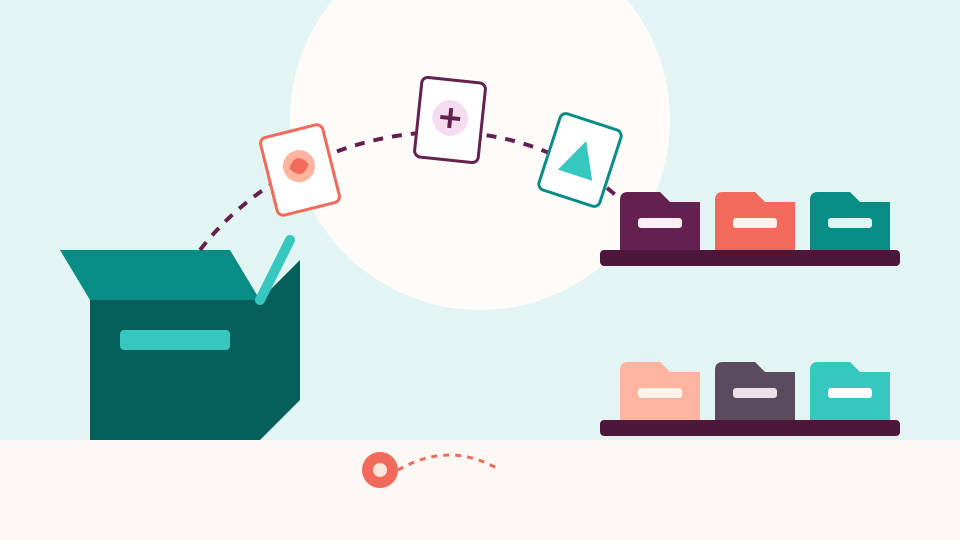
To move embroidery files from Dropbox, download each folder from dropbox.com, where it arrives as a ZIP, or make sure the Dropbox app keeps the folder on your computer. Then add those ZIPs or folders to your new library, one designer at a time. Keep the Dropbox copy until you have checked that every design arrived.
Dropbox is a good place to keep files safe, and many stitchers start there. As a collection grows, though, a folder of PES and DST files is hard to browse when you can't see the designs. Moving to an embroidery organizer is mostly a matter of downloading carefully and adding in sensible batches.
Before you start
A little planning makes the move calm and easy to check:
- Move one designer at a time. If your Dropbox has a folder per designer, move those folders one by one. Each step stays small, and you can see what has moved.
- Keep your Dropbox copy for now. Don't delete anything until you have looked through the new library.
- Check your space. Your designs count toward your new library's storage. Pricing lists how much each plan holds.
- Note any odd folders. Folders like "To sort" or "Misc" are worth a quick look first, so you know where they should go.
How to move embroidery files from Dropbox on the website
The Dropbox website makes a ZIP of a folder for you. Dropbox's own help center gives these steps:
- Sign in to dropbox.com.
- Hover over the folder you want to download.
- Click the checkbox next to it.
- Click Download.
The folder downloads as a .zip file to your computer's Downloads folder. Dropbox says a folder can only be downloaded this way if it is smaller than 250 GB and holds fewer than 10,000 files in all, counting the files in folders inside it. If a designer's folder is bigger than that, download its folders one at a time. A single file downloads on its own, without a ZIP. The steps and limits are on Dropbox's page How to download a file or folder from Dropbox.
Using the Dropbox app on your computer instead
If you have the Dropbox desktop app on your Windows computer or Mac, your files may already be in a Dropbox folder on your computer. You can add that folder straight to your new library, with no ZIP needed.
Make sure the files are really on the computer, not only online. Dropbox can keep files "online-only" to save space: you see them in the folder, but they live in your Dropbox account. Dropbox's help center says to open the Dropbox folder in File Explorer or Finder, right-click the folder and choose Make available offline. See Free up space with online-only files. If you use selective sync, also check that the folder is ticked to sync to this computer, as described in Dropbox's selective sync overview.
Dropbox also recommends its desktop app when you download large files, so this route suits a big collection.
Add the ZIPs or folders to CraftKeep

CraftKeep doesn't connect to Dropbox directly. You bring the files in from your computer, using any web browser:
- On My Library, choose Add files at the top right and pick your ZIPs. For a folder, choose Choose a folder in the box under the list instead. You can also drag ZIPs or a folder onto the page.
- The Add designs window opens. Choose Smart, then under Which designer is it from? choose the designer, or + New designer… to add one.
- Check the suggested project name. With several ZIPs, choose Next for each one.
- On the last one, choose Add project (or, for several, the button that says how many, such as Add 4 projects). Keep the page open until it finishes.
When a ZIP or folder holds several designs, or more than one designer, CraftKeep first shows Here's how this will look in your library, with a count such as "1 designer, 2 projects, 7 files". Show the details lists each designer and project. You can rename anything or change what a folder is, and nothing is added until you choose Looks good — add to my library.
CraftKeep unpacks each ZIP for you and keeps your folders. Format folders such as PES and DST, and hoop size folders such as 4x4 and 5x7, stay inside their project rather than becoming projects of their own. Your file names stay exactly as they were. Moving your library from Dropbox, OneDrive or Google Drive and Adding files, folders and ZIPs cover the details.
Moving a very big library

For thousands of designs, the free CraftKeep add-on for Windows or Mac is easier than a web browser. Download your Dropbox folder to your computer, or let the Dropbox app keep it there. Then open Import a library in the add-on and choose Choose a folder, or Choose a .zip file for a library saved as one ZIP.
The add-on opens ZIPs inside ZIPs, stores a design that sits in several folders only once, and picks up where it left off if your computer sleeps. Before anything is added, it tells you whether the designs fit your plan. Get it on the download page, and read Import your design library for each step.
Check that everything arrived

Once a designer's projects are in, take a few minutes to check them:
- Open each new project and look through its stitch pictures. Seeing the designs is often the first time in years you have looked at the whole collection.
- From Your account, open Duplicate files. It lists files with exactly the same contents in more than one project, even under different names. That catches a design you kept in two Dropbox folders. Choose Keep this one to move the other copies to the Trash, or Keep all.
- When everything looks right, the Dropbox copy is yours to keep as an extra backup or to remove.
Embroidery organizer vs Dropbox: what changes?
Dropbox stores any kind of file and syncs it between your devices. Its own list of file types that preview covers everyday files such as PDFs and pictures, but not embroidery formats like PES, DST or JEF. So in Dropbox you see the file name, not the design.
An embroidery organizer reads the designs themselves. In CraftKeep, each design shows as a stitch picture with its size, and its thread colors where the file stores them, projects belong to designers, and you can filter by hoop size. Getting designs onto your machine's stick is built in too. Send to USB copies files straight to the drive in Chrome or Microsoft Edge on a computer, and other browsers save them to Downloads. The full side-by-side comparison is on CraftKeep vs Dropbox.
Many people keep both: Dropbox for general files, and an embroidery library for designs.
Next steps
Pick one designer's folder and move it today. Then read how to organize embroidery files to set up tags and names that last, or how to find duplicate embroidery designs to tidy up after the move. The embroidery file organizer page shows what else CraftKeep does.
Dropbox is a trademark of Dropbox, Inc. Google Drive is a trademark of Google LLC. OneDrive is a trademark of Microsoft Corporation. Windows and Microsoft Edge are trademarks of Microsoft Corporation. Mac is a trademark of Apple Inc. Chrome is a trademark of Google LLC. CraftKeep is not affiliated with these companies.
Try it with your own files
Make a free CraftKeep library and see your machine embroidery files as pictures you can search.
No credit card needed
Topics:Moving your library