

How to preview PES files without embroidery software
A PES file won't open like a photo, but your web browser can still draw it. Here is how to see the stitches, size, hoop fit and stored colors of a design for free.
By CraftKeep Team · · 6 min read
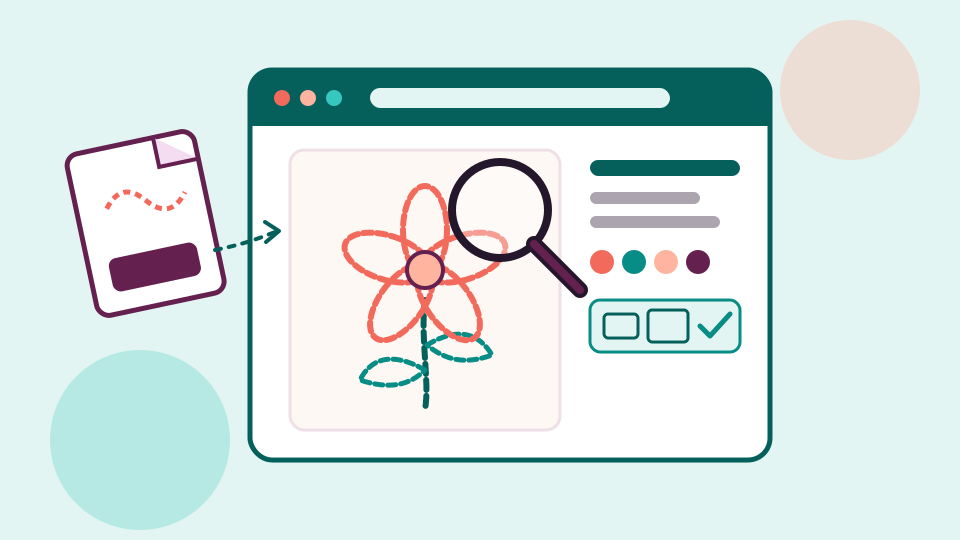
To preview PES files without embroidery software, open a free embroidery file viewer in your web browser and drop the file onto it. The browser draws the stitches and shows the size, stitch count and which hoops the design fits, and the thread colors where the file stores them. CraftKeep's free embroidery preview does this for PES, DST, JEF, EXP, VP3 and XXX files, and your file never leaves your device.
Most people meet this problem the day a new design arrives. You double-click the file, and your computer asks which program should open it. Nothing on the list seems right. You just want to see the design before you load it onto a USB stick, stabilize a towel and press start.
Why won't a PES file open like a photo?
A PES file is a stitch file. It doesn't hold a picture. It holds a list of instructions for the machine: move the needle here, make a stitch, jump there, change to the next color. A photo viewer has no idea what to do with that list, so it can't show you anything.
To see the design, a program has to read every instruction and draw the stitches on screen. Embroidery software does that, but it can cost a lot and take a while to learn. A free PES file viewer that runs in your browser does just the drawing part, which is often all you need.
PES is one of many machine formats. The mySewnet software help lists PES under Brother and Baby Lock, DST under Tajima and JEF under Janome. If the alphabet soup is new to you, Embroidery file formats explained walks through each one.
How to preview PES files without embroidery software


This embroidery file viewer online runs right on the CraftKeep website. You don't need an account.
- Open the embroidery file preview.
- Drag your PES file onto the drop area, or choose Choose a file and pick it.
- Wait a moment while the page says "Reading the stitches…". The design then appears in its own thread colors.
- Zoom with the + and − buttons, the mouse wheel or a pinch, and drag to move around. Fit puts the whole design back in view.
- Choose Download picture if you'd like to keep a PNG picture of the design.
That's all. There is nothing to install, and it works the same in a browser on a computer, tablet or phone. On a phone, the design needs to be saved on the phone first, so Choose a file can find it.
If the design is still inside a ZIP, unzip it first. The preview opens one design file at a time.
What does the preview tell you?
A good embroidery stitch file preview answers the questions you'd otherwise ask by stitching a test. Beside the picture you see:
- the size, in inches, measured from the stitches themselves
- the stitch count, which gives you a feel for how long the design will take
- the number of color changes, so you know how often you'll rethread
- each thread color in sewing order, with a swatch, and the thread brand, number and name when the file stores them
- which common hoops it fits: 4×4, 5×7, 6×10, 8×8 and 8×12
The hoops listed are common sizes, not your machine's own hoops. Choose Check hoop fit for your machine to open the free hoop fit checker with the design's size already filled in. Then pick your machine to see every hoop that takes it.
Can I open DST and JEF files the same way?
Yes. The same page works as a DST file viewer online and a JEF file viewer. It opens six formats, each up to 50 MB:
| Format | The mySewnet list places it under |
|---|---|
| PES | Brother and Baby Lock |
| DST | Tajima |
| JEF | Janome |
| EXP | Melco |
| VP3 | Husqvarna Viking and Pfaff |
| XXX | Singer |
One thing surprises people with DST. A DST file stores the stitches and the color changes, but not the thread colors. EXP files work the same way. So the preview gives each color change its own color, and the page says so above the color list. The shapes and the order are right, even when the colors are not the ones the designer chose. A PES, JEF, VP3 or XXX file usually stores its colors, so it draws in the designer's colors.
Is my file uploaded anywhere?
No. Your browser reads the file and draws it on your screen. The file isn't sent to CraftKeep or anywhere else, nothing is kept, and it's gone when you leave the page. That makes the preview a calm way to check a design you just bought, or one a friend shared, before it goes anywhere near your machine.
What if the file won't open?
The preview names the reason in plain words rather than showing a code:
- The file isn't in a format the preview opens. Check the end of the file name. ART, HUS and some other formats aren't opened by the free preview.
- The file is larger than 50 MB. Real embroidery files are almost always far smaller, so make sure it's the right file.
- The file looks damaged or incomplete. The download may have stopped partway. Download it from the designer again.
- The file has no stitches to show. It opened, but it holds no sewn stitches.
If a design looks fine in the preview but your machine still can't see it, the trouble is usually the format or the USB stick. Getting designs onto a USB stick covers the common fixes.
See every design in your library

The free preview shows one file at a time, and that is often enough. If you have hundreds or thousands of designs, opening them one by one gets slow. That is where a CraftKeep library helps.
When you add files with Add files, CraftKeep draws a picture of every embroidery design, in PES, DST, JEF, EXP, VP3, XXX and many other machine formats, including Bernina ART files. You see the designs as pictures in each project instead of a list of file names. Rest your mouse on a file and a bigger picture opens beside it, so you can tell near-identical files apart.
Click a design to open its preview. When CraftKeep can read the stitches, it shows the stitch count, the size and the hoop the design needs, and the thread colors where the file stores them. From there you can choose Download, or Send to USB to copy it to your machine's drive. Send to USB copies straight to the drive in Chrome and Microsoft Edge on a computer; other browsers save to Downloads instead.
A few limits to know. CraftKeep draws and measures designs, but it doesn't edit them or change one format into another. It doesn't connect to your machine, either: designs reach the machine on a USB drive. Previews and their limits lists which files get a picture, and Embroidery machines, hoops and stitch details explains the stitch numbers.
Next steps
- Preview one design now with the free embroidery file preview.
- Check a design against your own machine's hoops with the hoop fit checker.
- See how a whole collection looks as pictures in the embroidery file organizer, or browse every supported format.
- When you're ready to tidy up, How to organize embroidery files gives you a system that grows with you.
Brother, Baby Lock, Bernina, Tajima, Janome, Melco, Husqvarna Viking, Pfaff, Singer and mySewnet are trademarks of their respective owners. Chrome is a trademark of Google LLC. Microsoft Edge is a trademark of Microsoft Corporation. CraftKeep is not affiliated with these companies.
Sources
- Embroidery File Formats, mySewnet Software Help
- OESD Embroidery Design Formats, OESD
Try it with your own files
Make a free CraftKeep library and see your machine embroidery files as pictures you can search.
No credit card needed