

A beginner's guide to longarm quilting files
New to a computerized longarm? Here is what a quilting pattern file is, which file types you will meet, how to see what's inside one, and how it gets to your machine.
By CraftKeep Team · · 5 min read
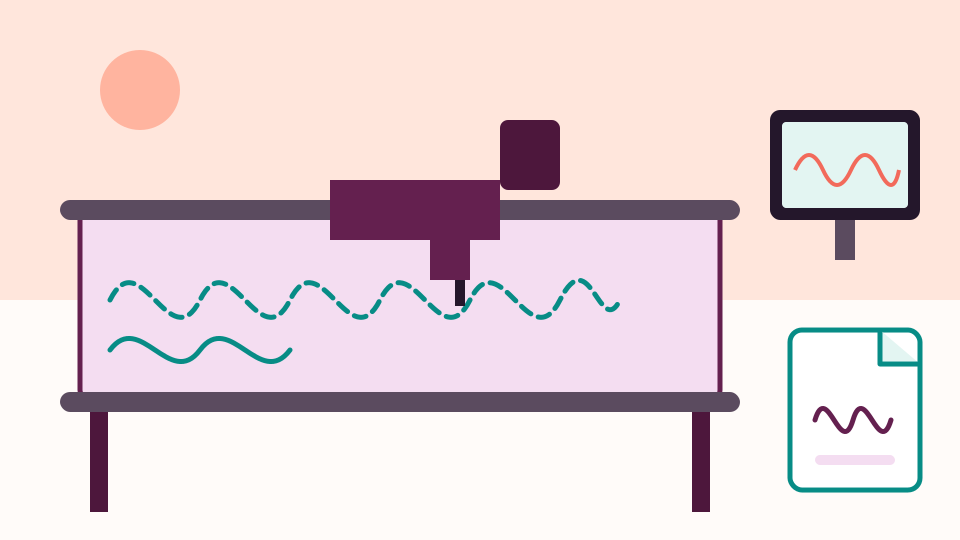
This beginner's guide to longarm quilting files covers the basics: a pattern file is a small file that tells a computerized longarm where to move the needle. Your longarm's own quilting computer opens the file and stitches it. Each quilting system reads its own file types, so one design usually comes in several. Learn which one your system uses, keep the rest, and you are ready to start.
If you just bought a longarm with a computer, or you are thinking about one, the files can seem like a puzzle. Here are the words and steps you need.
What a longarm quilting file is
A longarm quilting file, often called a pattern or a design, holds a stitch path. Think of it as a drawing made of one long line. The quilting computer moves the machine along that line while the needle stitches.
The file doesn't hold fabric, thread colors or a picture of the quilt. It holds only the shape and its size. That is why these files are small, often smaller than a single photo.
Words you will hear
- Pantograph or panto. An edge-to-edge design: one row that repeats across the whole quilt.
- Edge to edge, or E2E. Quilting the whole top with one repeating design, usually a panto.
- Block. A design sized to fill one quilt block.
- Border and corner. Designs that run along the edge of a quilt and turn the corners.
- Custom quilting. Choosing different designs for different parts of one quilt.
- Quilting system. The computer, screen and program that drive your longarm.
Computerized longarm quilting software does the stitching
This part is worth knowing early. The computerized longarm quilting software that came with your machine is what reads a pattern and stitches it. It is where you set the size, place the rows and start the machine.
Other programs can store patterns, show them and help you find them. They don't stitch. CraftKeep is one of those: it stores and shows your files. It doesn't connect to your longarm, and it doesn't send patterns to it. You take each file to your machine yourself, as the section below explains.
The common file types
Each quilting system has file types it reads. Designers sell one design in many types so every quilter can use it. Here are the ones you will meet most:
- QLI is used by Gammill Statler, and several other systems can read it too.
- HQF and HQV are used by Handi Quilter Pro-Stitcher.
- IQP is used by IntelliQuilter.
- BQM is used by BERNINA Q-matic.
- PAT is used by Innova AutoPilot.
- CQP, SSD and QCC are used by other quilting systems.
- DXF and PLT are general drawing files that many quilting programs can open. Cutting machines use them too.
Your machine's manual or dealer can tell you which file type to choose. Some patterns come locked, so they open only on one system. Keep those exactly as they came.
How to see what's inside a pattern file

A file name like kd004-b2.qli doesn't tell you what the design looks like. You need a preview.
CraftKeep works as a QLI file viewer in your web browser. When you add a QLI file, it draws a picture of the stitch path. It does the same for HQF, HQV, IQP, BQM, PAT, CQP, SSD, QCC, PLT and DXF files. That gives you a longarm quilting pattern preview without opening your quilting software. Open a file to see a bigger picture, and choose Previous or Next to step through the other files in the project.
The picture shows the shape, not the size it will stitch on your quilt. Check the size in your quilting software before you stitch. A file CraftKeep can't draw, such as a locked pattern, shows a file icon and is still kept and found by name. See Longarm quilting patterns in CraftKeep for the full list.
Getting a pattern to your longarm
Most quilting computers take new patterns from a USB stick. The steps look like this:
- Find the pattern in the file type your system reads.
- Copy it onto a USB stick.
- Plug the stick into your quilting computer and open the pattern in its software.
In CraftKeep, open the file and choose Download to save it, or Send to USB to copy it straight onto your USB stick. Send to USB saves straight to the stick in Chrome or Microsoft Edge on a computer. Other browsers save to your Downloads folder instead. See Downloading and sending to USB. Your quilting software then takes over, the same as with any file.
Keeping your first patterns in order

Start tidy and it stays easy. A computerized quilting design organizer, such as CraftKeep, files each pattern under its designer, one design per project, with every file type inside.
- Choose Add files on My Library and pick the ZIP you downloaded. CraftKeep unpacks it for you.
- Choose the designer and the project, or type a new name.
- Add your longarm under Your machines on your account page. Files your quilting system reads then say Works on your … with your machine's brand.
To see only quilting patterns, choose Filter, then Quilting under Type. Search finds patterns by file name, project, tag and notes, and also reads the names saved inside QLI, CQP and SSD files.
A few beginner mistakes
- Deleting the file types you don't use. Keep them. A new machine or a friend may need them.
- Renaming the file ending. Changing
.qlito.hqfdoesn't convert anything. It only stops the file from opening. - Keeping patterns only on the quilting computer. Keep a copy somewhere else too.
- Trusting the picture for size. Set and check the size in your quilting software.
Next steps
When your collection starts to grow, read how to organize longarm quilting files and how to organize digital pantograph files. See the longarm quilting file organizer, the QLI format page and every supported format. Plans are on the pricing page.
Gammill and Statler, Handi Quilter and Pro-Stitcher, IntelliQuilter, BERNINA and Q-matic, Innova and AutoPilot, Chrome, and Microsoft Edge are trademarks of their respective owners. CraftKeep is not affiliated with these companies.
Try it with your own files
Make a free CraftKeep library and see your longarm quilting files as pictures you can search.
No credit card needed