

How to organize longarm quilting files
Sort your quilting patterns by designer, keep every format of one design together, and give each a name and a few tags you can search. A simple system for any size of library.
By CraftKeep Team · · 5 min read
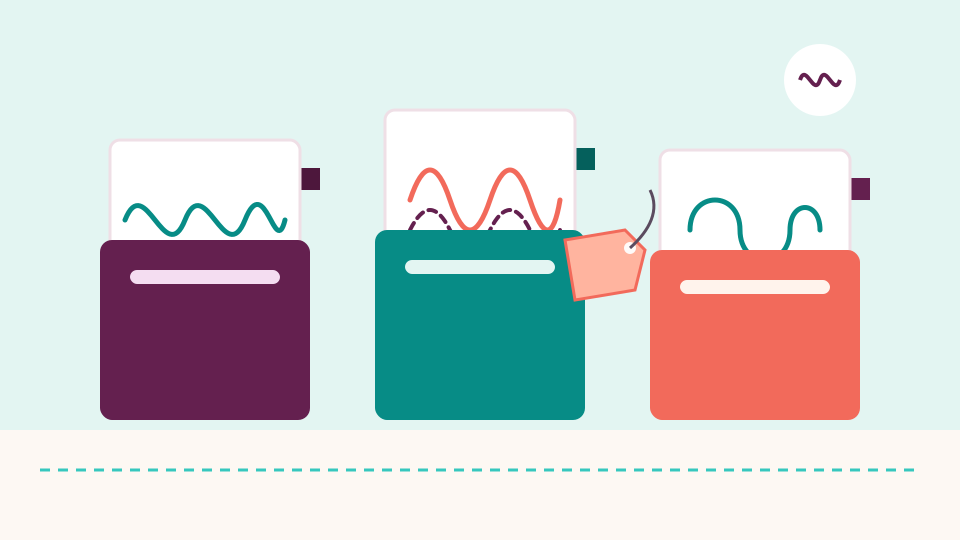
To organize longarm quilting files, give each design its own project, file every project under the designer who made it, and keep all the file types of one design side by side. Then add a short, clear name and two or three tags. The same plan answers how to organize digital quilting patterns of every kind: edge-to-edge pantographs, blocks, borders and corners.
A computerized longarm makes it easy to buy patterns. A few years later, the patterns are spread across a laptop, two USB sticks, an email inbox and the quilting computer. This guide shows you how to bring them into one tidy library.
Why longarm quilting patterns get messy
Longarm quilting patterns are small files that hold the path the needle follows across the quilt. Three things make them hard to keep in order:
- One design comes in many file types. A designer often sells one pattern as a ZIP with QLI, HQF, IQP, BQM, CQP, DXF and more inside. You only stitch one of them, but you want to keep them all.
- The names are short codes. A file called
kd004-b2.qlitells you nothing about feathers or bees. - Patterns live on several computers. Some sit on the quilting computer, some on your laptop, and some only in a shop's download page.
A little structure fixes all three.
Step 1: Sort by designer
Start with the person or shop that made the pattern. Most quilters remember "that lovely feather set from the same designer" long before they remember a file name. Make one group for each designer.
Sorting by designer also keeps your purchases easy to check. When a designer sends an updated pattern, you know where the old one lives. When you need the license or the receipt, you know which shop to look up.
Step 2: One design, one project
Inside each designer, give every design its own project, named after what it is, such as "Bee block" or "Swirling feathers panto". Put every file for that design inside it:
- all the file types it came in, even the ones your machine doesn't use
- the PDF or picture the designer included
- your own notes on size and spacing
When the whole set sits together, you never lose the HQF and keep only the DXF. If you ever change longarms, the other file types are already there.
Step 3: Give patterns names you can search
Rename a file only after you know what it is, and keep the file ending the same. A good name says the motif and the kind of pattern:
Bee block - 10 inch.hqfSwirling feathers - edge to edge.qliHolly border - corner.iqp
Never change the ending from .qli to .hqf. That doesn't convert the pattern. It only stops your quilting software from opening it.
Step 4: Add tags for how you use them
Tags work across designers. Pick a handful of words you will really use, such as "baby quilts", "Christmas", "dense", "open" or "customer favorite". A small, steady set of tags is easier to use than dozens of one-off words.
Good tags answer the question you ask at the frame: "What do I have that suits a baby quilt?" or "Which pantos are quick to stitch?"
Organize longarm quilting files with CraftKeep

CraftKeep is an online library for craft files, and it works as a longarm quilting file organizer. It follows the same plan as the steps above: every file lives in a project, and every project belongs to a designer.
- Choose Add files on My Library and pick your pattern files or the ZIPs they came in.
- Under Which designer is it from?, choose the designer, or + New designer… for a new one.
- Under Which project?, pick a project or choose + New project with the name you typed.
CraftKeep unpacks each ZIP for you and keeps the designer's folders. Most pattern files then show a picture of the quilting lines, so a project reads like a catalog. That includes QLI, HQF, HQV, IQP, BQM, PAT, CQP, SSD, QCC, PLT and DXF files. A file it can't draw, such as a locked pattern, keeps a file icon and is still found by its name.
To tag a project, open it and choose More, then Add tags. A project can have up to 5 tags. Each project also has notes, which search reads too, so "12 inch rows, 1/2 inch spacing" is easy to find later.
CraftKeep keeps every file exactly as you added it. It doesn't convert one pattern type into another, and it doesn't connect to your longarm or its quilting computer. When you are ready to stitch, you choose Download or Send to USB and take the file to your machine as usual. The full steps are in Longarm quilting patterns in CraftKeep and Downloading and sending to USB.
Find patterns fast with the Quilting filter

When a library holds embroidery, cut files and quilting patterns together, a filter helps. In CraftKeep:
- Choose Filter, next to the search box at the top.
- Under Type, choose Quilting.
- Choose Show results.
Only your quilting patterns show. Inside a single project, choose Filter, then Quilting under Type, then Done. Choose Clear filters to see everything again.
You can also add your longarm under Your machines on your account page. Patterns in a file type your quilting system reads then say Works on your … with your machine's brand, so the right file stands out in a project full of formats.
Search helps too. Type "feather" or "bee" in the search box, and CraftKeep finds patterns by file name, folder, project, tag and notes. It also reads the names saved inside QLI, CQP and SSD pattern files. See Searching your library.
Mistakes to avoid
- Keeping only the file type you stitch. Keep the whole set. Your next longarm may read a different one.
- One big "Quilting" folder. Hundreds of patterns in one place are hard to browse. Designers and projects give each file an address.
- Deleting the ZIP before you check it. Make sure every file came out of it first.
- Relying on the quilting computer alone. It is a working copy. Keep your main library somewhere you can reach from any computer.
Next steps
Once a week, look in your Downloads folder and your email for new patterns. File each one under its designer, give it a clear name and add a tag or two. Ten minutes a week keeps the library easy to use.
See how the longarm quilting file organizer works, or look through the supported formats. Ready for more detail? Read how to organize digital pantograph files and how to back up longarm quilting files. New to computerized quilting? Start with the beginner's guide to longarm quilting files. Plans are on the pricing page.
Try it with your own files
Make a free CraftKeep library and see your longarm quilting files as pictures you can search.
No credit card needed
Topics:OrganizingPantographs