

How to back up longarm quilting files
Your quilting patterns are worth protecting. Keep more than one copy in more than one place, include what's on the quilting computer, and know how to get a pattern back.
By CraftKeep Team · · 5 min read
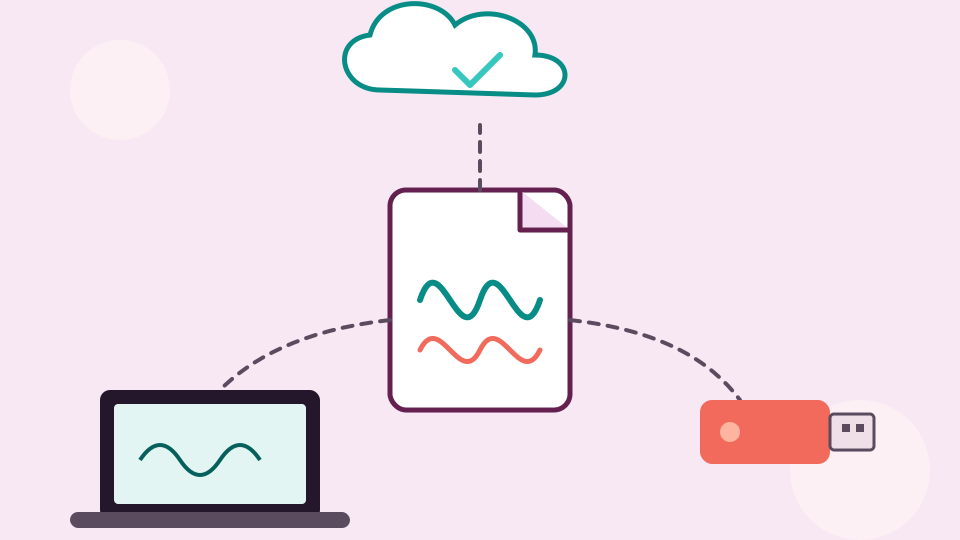
To back up longarm quilting files, keep at least two copies of every pattern in two different places, such as one online and one on a drive at home. Make sure the copy on your quilting computer is never the only one. Then check now and then that you can open the backup, so you know it works when you need it.
Quilting patterns are easy to lose. A quilting computer can fail. A USB stick goes missing in a sewing bag. A laptop gets replaced and the Downloads folder goes with it. Many of those patterns were paid for, and some can't be downloaded again.
Why longarm quilting file backup matters
Longarm quilting file backup is about more than the files you stitch this week. Think about everything you would miss:
- Patterns you bought. Shops close, change their sites or limit how many times you can download.
- Patterns you drew or changed yourself. Nobody else has a copy of those.
- Every file type of a design. The QLI you don't use today may be the one your next longarm needs.
- The notes that go with them. Row sizes, spacing and thread choices took time to work out.
A good backup keeps all four.
Where your patterns live today
Before you set up a backup, find every place your patterns sit. Most quilters have more than they think:
- The quilting computer on your longarm, which often holds its own pattern library.
- Your laptop or desktop, in Downloads, Documents and the desktop.
- USB sticks used to carry patterns to the machine.
- Your email, where some shops send download links.
- Shop accounts, where past purchases may still be listed.
Gather them into one folder on your computer first. That gives you one complete set to back up.
How to back up longarm quilting files: two places, one away from home
A backup only helps if one problem can't take out every copy. Keep at least two copies, and keep one of them away from your sewing room. A fire, a flood or a power surge can damage the longarm, the laptop and the drive on the shelf at once.
Here is a setup that is easy to keep going:
- Copy 1: online. Longarm quilting cloud storage keeps a copy safe from anything that happens in your home.
- Copy 2: a drive at home. An external hard drive or a large USB drive, kept in a drawer, not in the machine.
- The quilting computer is your working copy. You can fill it again from either backup.
Don't count on a USB stick
USB sticks are handy for carrying patterns to the frame, but they are poor longarm quilting file storage. They are small, easy to lose and easy to wipe by mistake. Treat the stick as a delivery bag. Anything on it should also be in your backup.
Longarm quilting cloud storage with CraftKeep

CraftKeep is an online library for craft files, and quilting patterns are one of the crafts it keeps. You open it in a web browser on a computer, tablet or phone.
- Choose Add files on My Library and pick your pattern files or the ZIPs they came in. CraftKeep unpacks each ZIP and keeps the designer's folders.
- Choose the designer under Which designer is it from? and the project under Which project?.
- Write your row sizes and spacing in the project's notes so they are backed up with the files.
For a big folder of patterns, use Choose a folder when you add files, so the whole folder comes in at once with its folders kept. Bring quilting patterns in this way, through Add files in CraftKeep itself, rather than with the add-on's Import a library, which is made for embroidery and other design files. See Adding files and ZIPs.
Most pattern files show a picture of the quilting lines, so you can check at a glance that the right patterns went in. CraftKeep keeps each file exactly as you added it, and it doesn't send patterns to your longarm. To use one, you choose Download, or Send to USB in Chrome or Microsoft Edge on a computer, and take the file to your machine. See Downloading and sending to USB.
Get back a pattern you deleted or replaced
A backup also protects you from your own mistakes. CraftKeep has three ways back:
- Undo. When you choose Put in Trash, a message with an Undo button appears for a few seconds.
- Trash. Things you put in Trash wait there for 30 days. Open Trash at the bottom of the menu on the left and choose Bring back. A project comes back with all its files.
- Versions. If you add a file with the same name as one already in the project, CraftKeep asks first. Choose Replace file, and the old copy is kept as an earlier version. Open the file's preview, choose Versions, then Use this version next to the one you want. Each version shows the date it is kept until.
Things in Trash and earlier versions still count toward your storage until they are gone. The full details are in Trash and earlier versions and Using the Trash.
Keep your own copy at home too
An online library is one copy. Keep a second one at home as well. In CraftKeep, open a project, choose More, then Download all. The project saves as one .zip file with its folders inside. Save those ZIPs to your external drive every few months, or whenever you add a big batch of patterns.
Check your backup
A backup you have never opened is only a hope. A few times a year:
- Open three or four patterns from your home drive and make sure they load in your quilting software.
- Look through your online library for patterns you added recently.
- Add anything new from your quilting computer and Downloads folder.
Next steps
Read how to organize longarm quilting files so your backup is easy to search, or how to organize digital pantograph files for your edge-to-edge designs. See the longarm quilting file organizer, how CraftKeep protects your library on the security page, and plans on the pricing page.
Windows and Microsoft Edge are trademarks of Microsoft Corporation. Mac is a trademark of Apple Inc. Chrome is a trademark of Google LLC. CraftKeep is not affiliated with these companies.
Try it with your own files
Make a free CraftKeep library and see your longarm quilting files as pictures you can search.
No credit card needed
Topics:Backup and storage